GDScript Formatter: The fast formatter for Godot 4
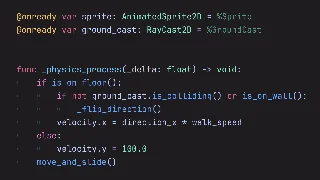
We've built a fast and easy to use code formatter for GDScript: GDScript Formatter. This formatter formats files in up to a few milliseconds on a mid-range laptop, which means your code gets formatted instantly.
The formatter handles all the core formatting you expect: consistent spacing, indentation, automatic wrapping of long lines, and good vertical spacing between functions and classes, all according to the official GDScript style guide.
It can optionally also reorder your code to match the style guide, moving all the signals and variables at the top, then built-in Godot methods, then public and private methods, and so on.
Here the variables are between function definitions. The formatter moves them instantly to the top:
I recommend using a version control system like Git and committing your work before running the formatter on a project for the first time. This way, you can review all the changes the formatter makes and undo them if needed.
We use the formatter in production at GDQuest and it has a good test suite, but GDScript is a complex language with many different syntax patterns. There can always be edge cases the formatter doesn't handle well yet, like rare syntax or brand new syntax from development versions of Godot.
For extra protection, the formatter has a --safe option that prevents it from overwriting a file if formatting would change what your code actually does. It's most useful when formatting many files at once, like a whole folder, or when running the formatter from a script or in continuous integration.
This project gives you a really snappy solution to format your GDScript code.
It's designed to be fast enough that you can integrate it into any code editor and have it format your code every time you save a file, without noticeable delays.
Nathan
Founder and teacher at GDQuest
Installing the formatter
To install the formatter, first download the executable file for your operating system from the links at the bottom of the page. Then, rename the file to something simple like gdscript-formatter and place it in your system PATH.
What is the PATH?
The "PATH" is a variable on your operating system. It contains a list of folders where your computer looks for programs when you type commands in the terminal. When you use a code editor and it runs external programs, these programs come from the PATH.
When you put the formatter in one of these "PATH" folders, you can run it from anywhere on your computer by just typing its name. On Windows, common PATH folders include C:\Windows\System32 or you can create a bin folder in your user directory. On macOS and Linux, you can use ~/.local/bin or /usr/local/bin.
You can also add a new folder to your PATH if you prefer to keep your tools organized in a specific place. How to do this depends on your operating system and terminal shell program. I recommend looking up a guide specific to your computer on your favorite search engine like "how to add a folder to PATH on Windows 11" or "how to add a folder to PATH on Ubuntu 24.04".
Using the formatter
Once you have the formatter installed, to use it, open your terminal or command prompt and type:
gdscript-formatter path/to/your_script.gd
This command will format your file and save the changes directly to the file.
You can also pass a folder to format all the GDScript files it contains, including files in subfolders:
gdscript-formatter path/to/folder
You can even pass multiple files and folders at once. If you don't give the formatter any path, it formats all the GDScript files in the current folder and its subfolders.
When formatting many files at once like this, I recommend adding the --safe flag. It adds a protection check that prevents the formatter from overwriting a file if formatting would change what your code actually does:
gdscript-formatter --safe path/to/folder
If the formatter detects that it might have changed the meaning of your code, this option leaves your original file unchanged. This check is most useful for large batch operations or when you're trying a development version of the formatter. For everyday formatting in your code editor, undo and using a version control system like Git is generally all the protection you need.
If you want to check if a file needs formatting without changing it, you can use the check mode:
gdscript-formatter --check path/to/your_script.gd
The check mode is particularly useful for build systems or continuous integration. It will exit with code 1 if the file needs formatting, making it easy to enforce consistent code style in your projects.
Experimental: You can also reorder your code according to the official style guide by adding the --reorder-code flag. This formats your code and rearranges it to follow the recommended order from GDScript's official style guide:
Avoid combining --reorder-code with the --safe flag: safe mode sees the reordered code as a meaningful change and stops the formatter. Use the reorder feature mindfully, especially as it makes big sweeping changes. Always back up your code or use version control.
To list all the command line options, run gdscript-formatter --help.
The formatter also includes a linter that checks your code for style and convention issues, like incorrect function or variable names. You can run it with the lint subcommand:
gdscript-formatter lint path/to/your_script.gd
Run gdscript-formatter lint --help to see all the linter options.
Automatic line wrapping
The formatter wraps long lines automatically. When a line goes over the maximum line length, which is 100 characters by default, the formatter splits it over multiple lines with the right indentation. For example, this long array:
var dialogue_items:Array[String]=["First line of dialogue...","Second line of dialogue...","Third line of dialogue...","Fourth line of dialogue..."]
Becomes this:
var dialogue_items:Array[String]=["First line of dialogue...","Second line of dialogue...","Third line of dialogue...","Fourth line of dialogue...",]
Lines that fit within the limit stay on one line. You can change the limit with the --max-line-length option or with an .editorconfig file (more on that below):
Sometimes you want to keep a piece of code exactly as you wrote it. For example, you may have aligned the values of a grid representation in an array by hand to make the code easier to read. You can tell the formatter to leave a section of code untouched by wrapping it between two special comments, # fmt: off and # fmt: on:
# fmt: offvar grid =[1,0,1,0,1,0,0,0,1,]# fmt: on
The formatter will output the code between the two comments exactly as it is in your file and not put it on a single line.
A few details to keep in mind:
If you write # fmt: off without a matching # fmt: on, the formatter stops formatting until the end of the file.
This feature currently works at the top level of a file and inside function bodies and classes, but not inside an expression like in the middle of an array, a dictionary, or a function call's arguments.
Currently, when a file contains a disabled region, the --reorder-code feature is ignored for the whole file and the formatter prints a warning. This prevents the formatter from moving code into or out of the disabled region.
Configuring the formatter with EditorConfig
You can configure the formatter with an EditorConfig file. EditorConfig is a standard file format supported by many code editors and tools: you write your preferences in a file named .editorconfig at the root of your project, and every tool that supports it uses the file to configure itself.
This is useful not only for getting consistent formatting across your devices, but it's even more useful when working in teams: because the .editorconfig file lives in your project and gets committed to version control, everyone on the team automatically gets consistent formatting options without any setup.
Here's an example .editorconfig file that uses spaces for indentation and a maximum line length of 120 characters for GDScript files:
[*.gd]
indent_style = space
indent_size = 4
max_line_length = 120
The formatter supports these standard EditorConfig settings:
indent_style: tab or space.
indent_size: the number of spaces per indent level if using space for indent_style.
max_line_length: the maximum line length before wrapping.
insert_final_newline: whether to end files with a newline.
trim_trailing_whitespace: whether to remove whitespace at the end of lines.
On top of these, the formatter supports its own options. They start with the prefix gdscript_formatter_ to avoid clashing with the settings of other tools:
gdscript_formatter_blank_lines_around_definitions (number): same as the --blank-lines-around-definitions flag.
gdscript_formatter_continuation_indent_level (number): same as the --continuation-indent-level flag.
gdscript_formatter_indent_blank_lines (true or false): keeps and normalizes indentation on blank lines instead of removing it. It's off by default. This option is useful if you work in the Godot script editor, which indents blank lines and doesn't have indent guides.
Note that if you use command line options explicitly, like --max-line-length, they override the .editorconfig value.
Forcing format on save on for a team
The Godot add-on also reads the key gdscript_formatter_format_on_save from the .editorconfig file. This key only affects the add-on and enables or disables format on save for the whole project and overrides each user's add-on setting. For example:
[*.gd]
gdscript_formatter_format_on_save = true
Use this to force everyone in your team to format their GDScript files on save.
You can also enable format on save only for selected directories or files. In editorconfig, you can put the same rule in multiple sections. At the top of your file, you put more general rules that apply in the general case, and later sections override earlier ones. For example, this configuration disables format on save by default and enables it only for scripts in addons/GDQuest_GDScript_formatter/:
You can integrate the GDScript Formatter with popular code editors to format your code automatically every time you save a file. This makes it really convenient to keep your code tidy without having to run terminal commands manually.
Remember: Before integrating the formatter into your editor, make sure to use a version control system like Git and commit your work regularly. This way, if the formatter ever makes a change you don't want, you can easily review and revert it.
Nathan
Founder and teacher at GDQuest
Here are step-by-step instructions for setting up the formatter in different editors:
Godot Editor add-on
We've created an official Godot add-on that brings GDScript Formatter directly into the Godot editor! The add-on adds a Format menu to the script editor and gives you convenient features like:
Easy install: the add-on can download and install the formatter for you
Format your code with a keyboard shortcut (Ctrl+Alt+I or Cmd+Alt+I)
An optional format on save setting
A built-in linter that highlights code style issues
VSCode is a popular free code editor from Microsoft.
To use the formatter in VSCode, install the Godot Format extension from the VSCode marketplace. This extension comes with the GDScript Formatter binary already included, so you don't need to install anything else!
Once installed, the extension works like any standard VSCode formatter. You can:
Format your code manually with the format command (Shift+Alt+F on Windows/Linux or Shift+Option+F on macOS)
Enable format-on-save to automatically format your GDScript files every time you save
The extension has several settings you can adjust. Check the extension's documentation for details on all available settings.
Like with other editors, I recommend using the reorderCode option manually rather than automatically on every save, as it makes big changes to your files.
Zed
Zed is a new code editor by the creators of Atom, written in Rust.
To use the formatter in Zed, first install the zed-gdscript extension. This extension adds Godot and GDScript support to the program.
Once you have the extension installed, you can configure the GDScript language to use GDScript Formatter on save or when running editor: format. Add this to your settings.json file (you can open it with the zed: open settings command from the command palette):
If you renamed the formatter binary to something else, change the command name to match. Once this is set up, Zed will automatically format your GDScript files every time you save them. If automatic formatting doesn't work, check that format_on_save is set to true in your settings (this is the default). You can also format manually by running the editor: format command in Zed.
To run the formatter with extra options, like --use-spaces or --reorder-code, you can add an arguments array to the configuration:
For the --reorder-code flag, I would suggest using it manually as a task you run from your command palette, rather than automatically on every save, as it makes big changes to your files.
Helix
Helix is a modal text editor that runs in your terminal, inspired by Kakoune and Neovim, built in Rust.
First, make sure you've installed the formatter and it's in your system PATH. Then you need to edit Helix's language configuration file. Navigate to your Helix config directory and open the languages configuration from your terminal:
cd ~/.config/helix && hx languages.toml
Add this line inside your [[language]] block for GDScript:
formatter = { command = "gdscript-formatter" }
NOTE:
Using GDScript with Helix requires additional setup beyond just the formatter. You'll need to configure the language support and possibly set up Godot to work with external editors.
To enable automatic formatting when you save files, add this line to your GDScript language options:
auto-format = true
Use this option mindfully, as it will format your code every time you save. Be sure to use a version control system so you can review the formatter's changes and revert them if needed.
JetBrains Rider
Rider is a proprietary development environment from JetBrains that supports many programming languages, including GDScript.
After installing the formatter, open Rider and go to your IDE settings. Look for Tools > File Watchers in the settings menu. Click the + button to add a new file watcher and select from the dropdown.
Fill in these configuration fields:
Name: GDScript Formatter
File Type: GDScript
Scope: Current File
Program: gdscript-formatter (or the full path if it's not in your PATH)
Arguments: $FilePath$
Output Paths to refresh: $FilePath$
Working Directory: $ModuleFilePath$
You can turn on the boxes for auto-save and triggering when files change outside the editor if you want. Make sure to keep the "Create output file from stdout" box unchecked.
If the formatter accidentally changes something you didn't want, you can usually undo with Ctrl+Z (or Cmd+Z on macOS). This will show you an "undo reload from disk" option. You can also check the local history by right-clicking on the file and selecting Local History > Show History.
Sublime Text
Using the SublimeLinter package, you can have GDScript-formatter lint your code as you work:
Install GDScript-formatter somewhere in your $PATH.
We're looking for help to list all the different ways you can integrate this formatter into various editors. If you have a favorite editor or IDE, please let us know how you set it up by replying to this GitHub issue!
Formatting automatically on commit
You can run the formatter automatically before each commit with a version control hook.
pre-commit is a popular framework for installing and managing these hooks across a team. If your team uses it, here's how to set it up for the GDScript formatter.
NOTE:
Pre-commit can only run the GDScript formatter if it's available on your system PATH, so please install the formatter first using the instructions above.
Then, to use the pre-commit configuration for this formatter, first add this to your project's .pre-commit-config.yaml configuration file:
repos:
  - repo: https://github.com/GDQuest/GDScript-formatter
    rev: 0.21.0 # Change the tag to the version of the formatter you want to use
    hooks:
      - id: gdscript-formatter
Install pre-commit if needed, then enable it in your project. You can install it with any Python package manager, including pip:
python -m pip install pre-commit
Once you've installed pre-commit on your computer, run the following command to install the hook in your project:
pre-commit install
The hook formats staged .gd files. If the formatter changes a file, meaning the file is not already formatted as expected, pre-commit will stop the commit. You will need to review the changes, stage them, and commit again. If you want to use special formatter settings, add the args key to the hook configuration. For example, to reorder code, you would add --reorder-code to the args list:
We need your help to make this formatter even better! GDScript has grown into a complex language with many different syntax patterns, and we want to make sure the formatter handles all of them correctly.
You can find the complete source code and contribute to the project on our GitHub repository. The repository includes detailed information about how to contribute, build the project from source, and submit improvements.
Found an issue? Please share the problematic code snippet with us by creating an issue on GitHub. When you report problems, it helps us improve not only this formatter but also the Tree Sitter GDScript parser that powers GDScript support in code editors like Zed, Neovim, and Emacs.
Even if you're not ready to contribute code, testing the formatter on your projects and reporting any issues you find is really valuable for the entire GDScript community!
Here's a template you follow to report issues:
You can use the following template as a reference when reporting issues on GitHub to help us understand and fix the problem:
Input code (the code that the formatter didn't handle well):
funccheck(x:bool):print(x)var test
Current output (how the formatter actually formatted the code):
funccheck(x:bool):print(x)var test
Expected output (how the formatter should format the code):
funccheck(x:bool):print(x)var test
Please share minimal code snippets like this that reproduce the issue if you can. It helps to narrow down the rule or syntax pattern that needs a fix.